Simulator
Test prompts against virtual keys and inspect live budget, rate limit, and routing behavior.
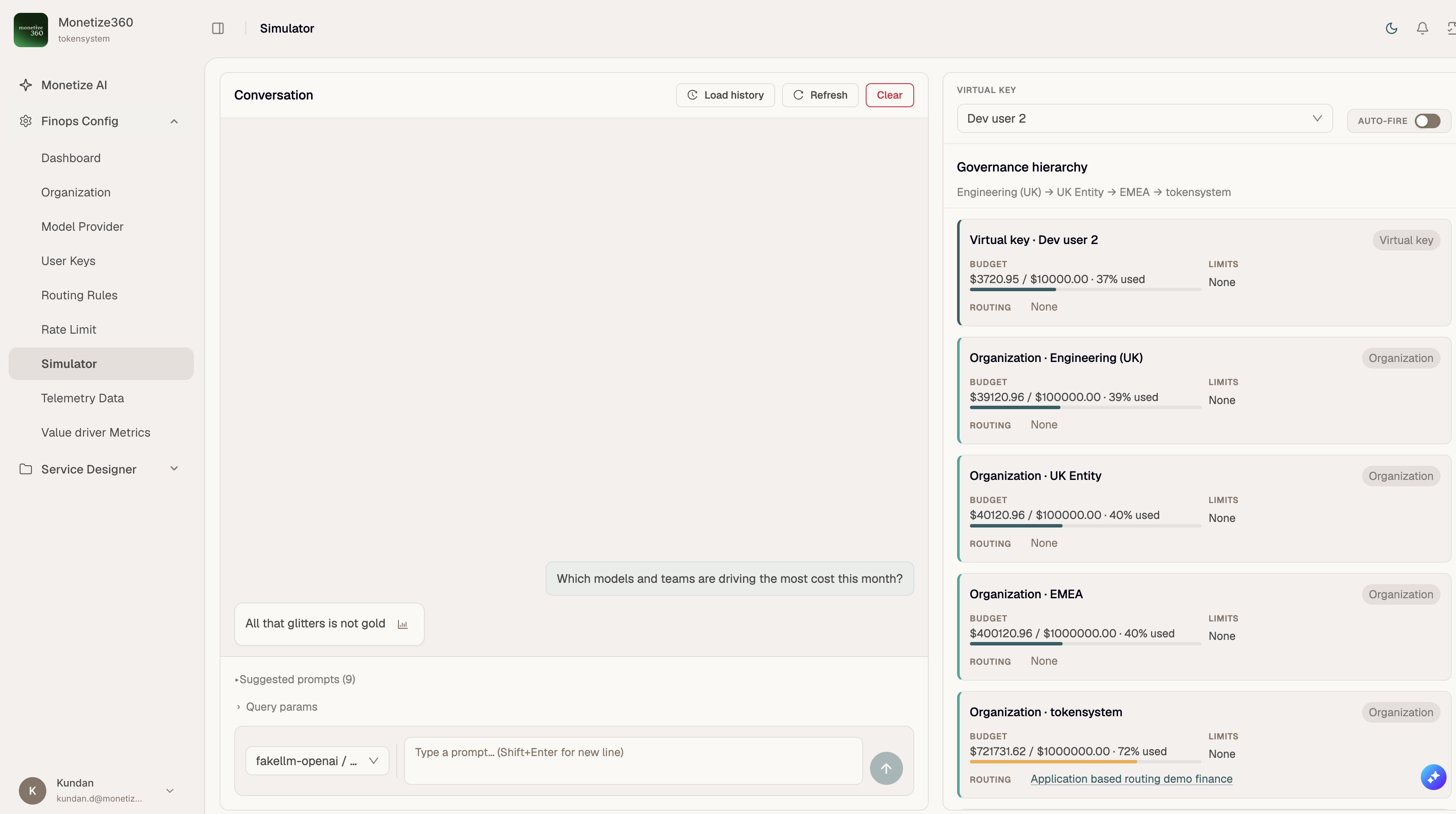
The Simulator lets you send real inference requests through the FinOps AI Gateway and see governance take effect immediately — without writing code or deploying a client application.
When to use it
- Validate budgets before production traffic hits a cap
- Confirm routing rules redirect to the expected model
- Reproduce rate-limit and model-block errors safely
- Demo FinOps behavior to stakeholders
Layout
The page has two panels:
| Panel | Purpose |
|---|---|
| Conversation (left) | Chat-style prompt/response testing |
| Governance hierarchy (right) | Live budget, limit, and routing state for the selected virtual key |
Step-by-step
- Open Finops Config → Simulator.
- On the right, select a Virtual key from the dropdown (active keys from User Keys).
- Review the Governance hierarchy cards — each shows Budget, Limits, and Routing for that scope.
- Choose a model (
provider / model) in the compose bar. - Type a prompt or pick a Suggested prompt preset, then send (Enter) or click the send button.
- Inspect the response:
- Routed banner — requested model differed from the model actually used; hover for rule name and CEL expression
- Error alerts — budget exceeded, rate limited, or model/provider blocked
- Details (chart icon) — tokens, cost, latency, and routing metadata
- Use Load history to pull prior turns from gateway logs for this key.
- Use Refresh to reload models and governance without clearing the chat.
- Use Clear to reset the on-screen conversation only.
Conversation controls
| Control | Action |
|---|---|
| Load history | Fetches paginated inference logs for the selected virtual key |
| Refresh | Reloads governance hierarchy and available models |
| Clear | Clears the in-session chat display |
| Suggested prompts | Nine FinOps-themed presets (cost drivers, budget alerts, routing policy, etc.) |
| Query params | Key=value pairs sent with the request so routing rules can match on metadata |
Governance hierarchy
Cards appear in evaluation order from most specific to global:
Hierarchy: Virtual key scope → Model scope → Organization chain → Global scope
Each card shows:
- Budget —
$used / $max · N% usedwith color coding (green under 70%, amber 70–89%, red 90%+) - Limits — request and/or token rate-limit usage, or "None"
- Routing — rule names; click to see status, CEL expression, target provider/model, and fallbacks
The breadcrumb above the cards (e.g. Engineering (UK) → UK Entity → EMEA → tokensystem) reflects the virtual key's Governance Scope Organization walking up the organization tree.
Budget and limit counters refresh automatically every second while a virtual key is selected.
Auto-fire
Toggle Auto-fire on the right panel to send a random suggested prompt every second. Useful for stress-testing rate limits and watching budget bars move under sustained load.
Auto-fire sends real gateway requests and consumes budget. Use only in non-production tenants or with test keys.
Error types you may see
| Alert | Meaning |
|---|---|
| Budget Exceeded | A budget at virtual key, org, model, or global scope blocked the request |
| Rate Limited / Token Limited / Request Limited | A rate limit window was exhausted |
| Provider Blocked / Model Blocked | The model or provider is not allowed for this virtual key |
| Virtual Key Blocked | The key is inactive or otherwise denied |