Routing Rules
Direct AI requests to specific models and providers using CEL-based routing rules.
Routing rules let you redirect requests based on conditions — model requested, metadata, query parameters, budget state, and more. Rules can target a different provider/model and define fallback chains.
Access
Open Finops Config → Routing Rules.
How routing works
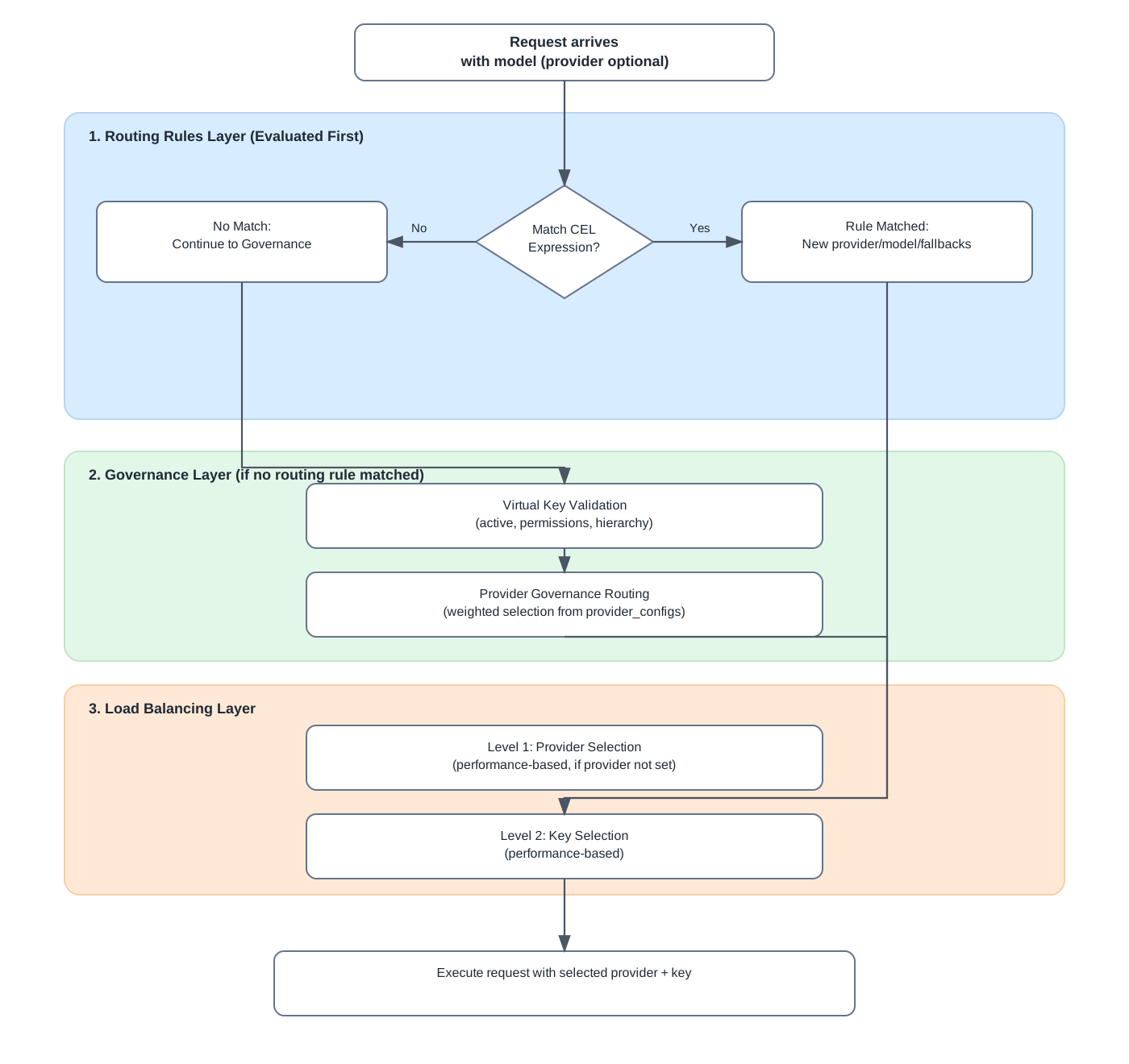
When a request arrives, the gateway evaluates rules in priority order. The first matching rule can change the target provider and model. If the primary target fails, configured fallbacks are tried.
Create a routing rule
- Click + Create.
- Set Name and optional Description.
- Enable Enabled to activate the rule.
- Write a CEL Expression — the condition that must be true for this rule to match (e.g. always
truefor a catch-all demo rule). - Choose Provider and Model targets — leave blank to keep the incoming request's provider/model.
- Set Fallbacks — comma-separated fallback model identifiers if the primary target is unavailable.
- Scope the rule:
- Organization — applies to all keys under that org subtree
- Scope Organization — runtime routing scope (mutually exclusive with virtual key scope in most cases)
- Virtual Key Id — applies only to one key
- Set Priority — lower numbers evaluate first.
- Click Submit.
Verify routing
Open the Simulator, send a prompt, and look for the Routed banner when the used model differs from what you selected. Hover the rule name to see the CEL expression, target, and fallbacks.