Open WebUI
Integrate Open WebUI with FinOps to access any AI provider through a modern open-source chat interface with virtual keys and observability.
Open WebUI is a modern, open-source chat interface that supports OpenAI-compatible APIs. By adding FinOps as a connection, you get access to any model configured in FinOps through a familiar ChatGPT-like interface, plus governance features like virtual keys and built-in observability.
If your Allowed Headers are already set to *, you can skip this note. If not and you face issues integrating FinOps with Open WebUI, try switching to * or adding the specific headers required by your client. By default, FinOps whitelists: Content-Type, Authorization, X-Requested-With, X-Stainless-Timeout, and X-Api-Key.
Setup
1. Install Open WebUI
Follow the Open WebUI documentation for installation. Open WebUI can run via Docker, Docker Compose, or Kubernetes.
2. Add FinOps as a Connection
If running Open WebUI in Docker and FinOps is on the host machine, use http://host.docker.internal:8080/v1 instead of localhost.
- Open Open WebUI in your browser
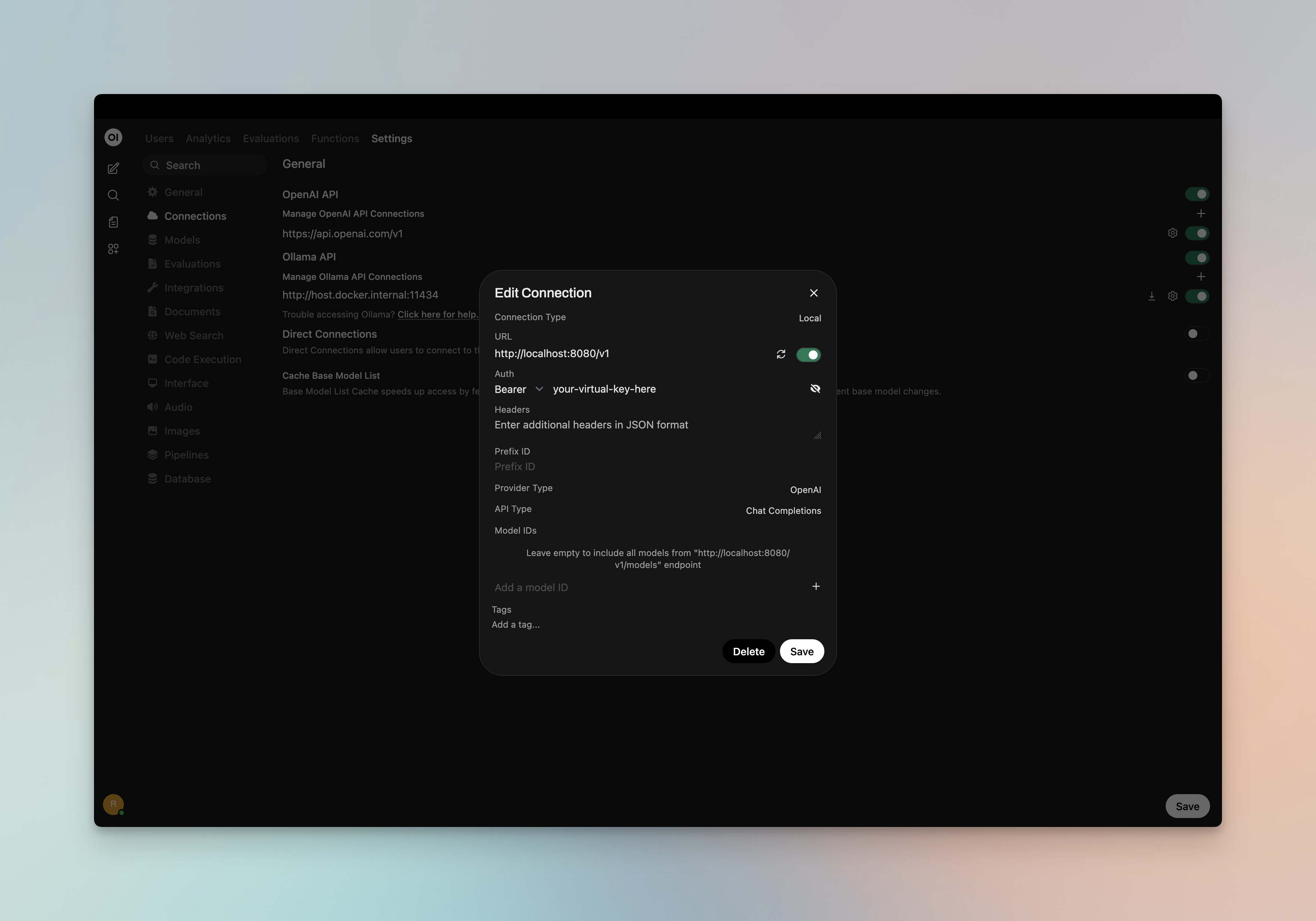
- Go to ⚙️ Admin Settings → Connections → OpenAI
- Click ➕ Add Connection
- Configure the following:
| Field | Value |
|---|---|
| URL | {AI_GATEWAY_URL}/v1 (or your FinOps host, e.g. https://finops.yourcompany.com/v1) |
| API Key | Your FinOps virtual key if authentication is enabled; otherwise leave empty or use dummy |
- Click Save
3. Model Discovery
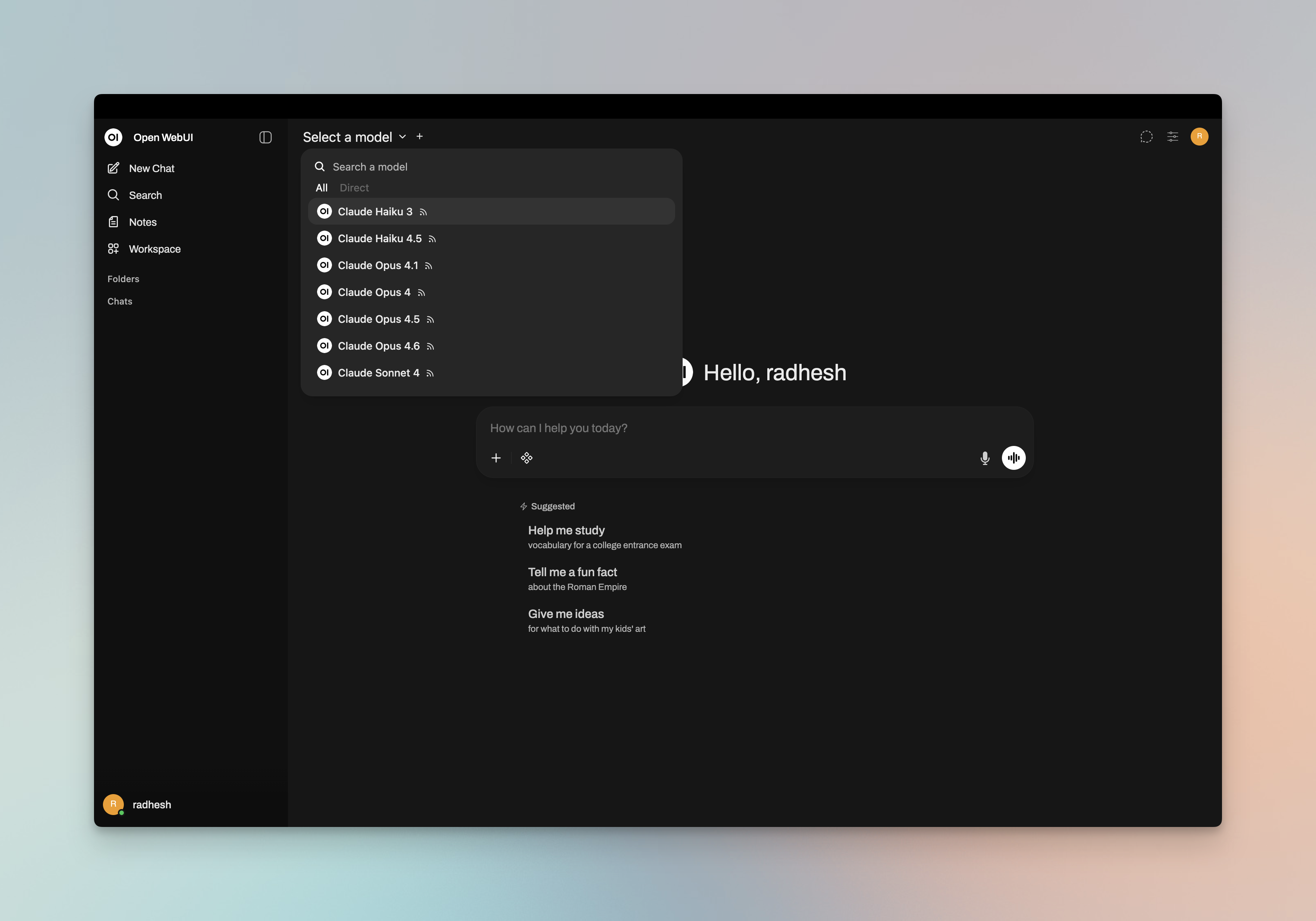
Open WebUI fetches available models from FinOps's /v1/models endpoint. If auto-detection fails or you want to filter which models appear, add model IDs to the Model IDs (Filter) allowlist in the connection settings. Use FinOps model IDs in provider/model format (e.g. openai/gpt-5, anthropic/claude-sonnet-4-5-20250929).
4. Start Chatting
Select your FinOps connection's model from the chat model selector and start chatting.
Virtual Keys
When FinOps has virtual key authentication enabled, set API Key in the connection to your virtual key. This lets you enforce usage limits, budgets, and access control per user or team.
For team deployments, create separate Open WebUI connections (or use different API keys per connection) - each virtual key can have its own rate limits, budgets, and provider access rules configured in the FinOps dashboard.
Model Selection
Open WebUI displays models fetched from FinOps or those you add to the Model IDs allowlist. Use FinOps model IDs in provider/model format to access any configured provider:
- Use powerful models like
openai/gpt-5oranthropic/claude-sonnet-4-5-20250929for complex conversations - Use fast models like
groq/llama-3.3-70b-versatilefor quick responses
Using Multiple Providers
FinOps routes requests to the correct provider based on the model name. Use the provider/model-name format to access any configured provider through the single /v1 endpoint:
anthropic/claude-sonnet-4-5-20250929
openai/gpt-5
gemini/gemini-2.5-pro
mistral/mistral-large-latest
Supported Providers
FinOps supports the following providers with the provider/model-name format:
openai, azure, gemini, vertex, bedrock, mistral, groq, cerebras, cohere, perplexity, xai, ollama, openrouter, huggingface, nebius, parasail, replicate, vllm, sgl
Open WebUI connects to FinOps via a single OpenAI-compatible endpoint. FinOps handles routing to the correct provider based on the model name - no per-provider configuration needed in Open WebUI.
Multimodality
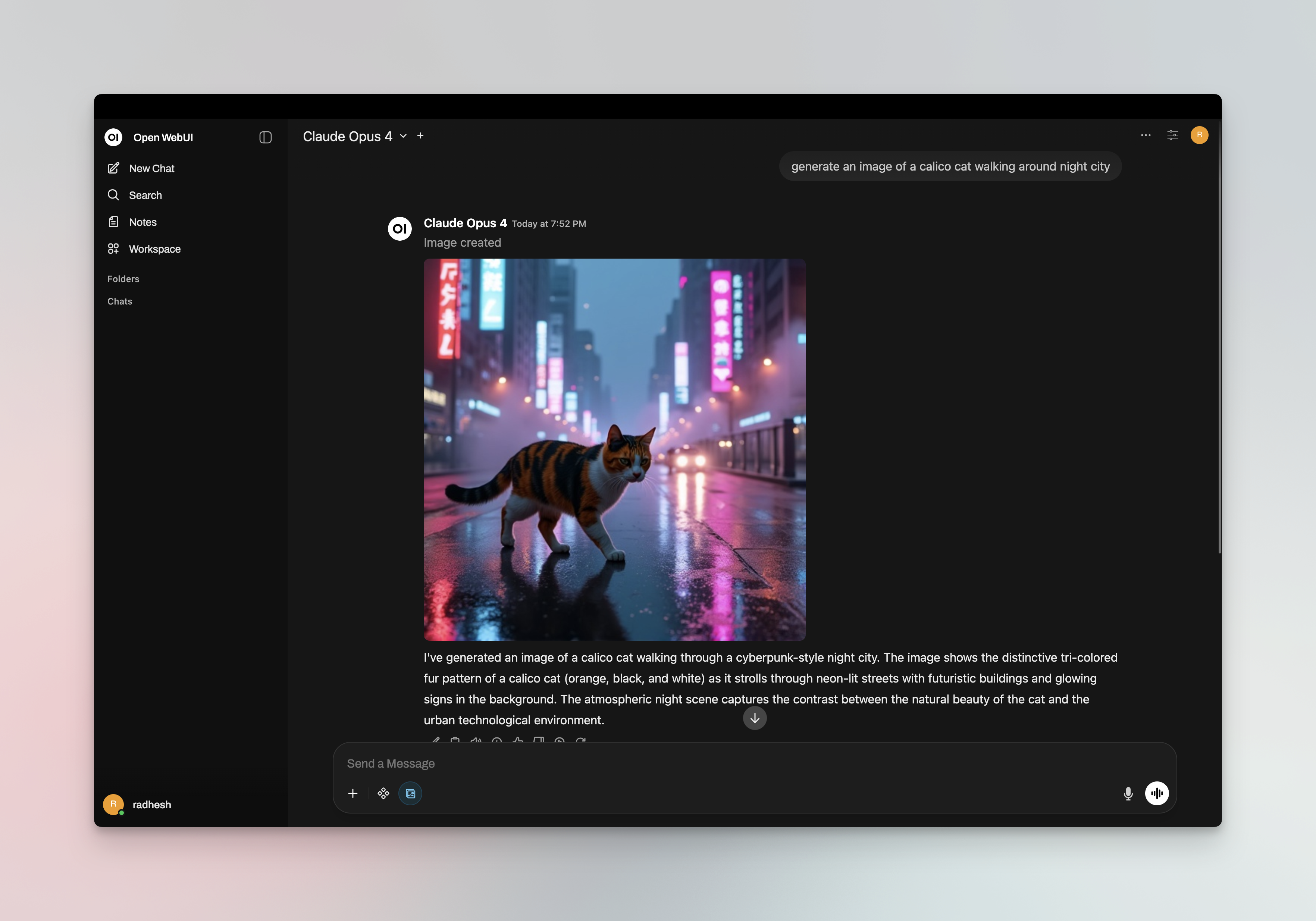
Open WebUI supports image generation and vision (image understanding). You can use FinOps for both.
Image Generation
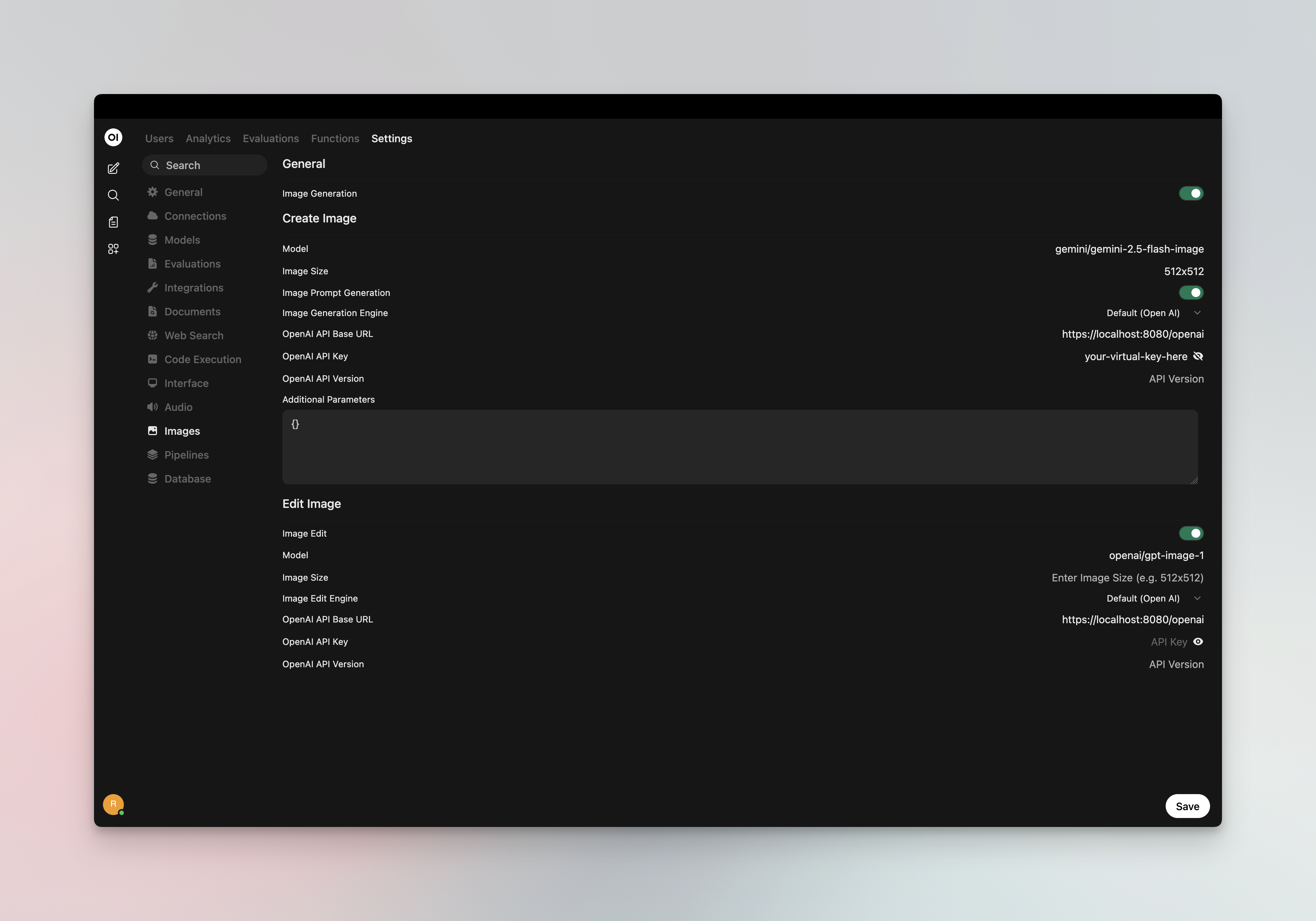
Set a FinOps provider/model as your image inference engine for DALL·E-style image generation:
- Go to ⚙️ Admin Settings → Settings → Images
- Set Image Generation Engine to Open AI
- Configure:
- API Endpoint URL:
{AI_GATEWAY_URL}/v1(or your FinOps host +/v1) - API Key: Your FinOps virtual key if authentication is enabled
- Model: FinOps model ID in
provider/modelformat (e.g.openai/dall-e-3,openai/gpt-image-1)
FinOps routes image generation requests to the configured provider. Use any image-capable model in your FinOps configuration (OpenAI DALL·E, GPT-Image, or other providers that support /v1/images/generations).
Vision (Image Understanding)
Chat models that support vision (e.g. openai/gpt-4o, anthropic/claude-sonnet-4-5) work through your main FinOps connection. When you select a vision-capable model in the chat selector, you can attach images to your messages - Open WebUI sends them to FinOps, which routes to the correct provider.
Docker Networking
Choose the correct URL for your setup:
| Setup | URL |
|---|---|
| Open WebUI and FinOps on same host | {AI_GATEWAY_URL}/v1 |
| Open WebUI in Docker, FinOps on host | http://host.docker.internal:8080/v1 |
| Both in same Docker network | http://finops-container-name:8080/v1 |
Environment Variables (Alternative)
You can also configure FinOps via environment variables when running Open WebUI:
# Single connection
OPENAI_API_BASE_URLS="{AI_GATEWAY_URL}/v1"
OPENAI_API_KEYS="your-finops-virtual-key"

# Multiple connections (semicolon-separated)
OPENAI_API_BASE_URLS="{AI_GATEWAY_URL}/v1;https://other-gateway.com/v1"
OPENAI_API_KEYS="key1;key2"
Observability
All Open WebUI traffic through FinOps is logged. Monitor it at {AI_GATEWAY_URL}/logs - filter by provider, model, or search through conversation content to track usage across your team.
Next Steps
- Provider Configuration - Configure AI providers in FinOps
- Virtual Keys - Set up usage limits and access control