
Object Fields Configuration
The Object Field Definition is the visual interface used to define fields and properties for Objects.
Overview
When working with Objects, the Object Field Definition provides a drag-and-drop interface to:
- Add fields to your Object schema
- Configure field properties (type, validation, UI options)
- Set up relationships and lookups
- Define field visibility and conditional logic
How It Works
Visual Interface
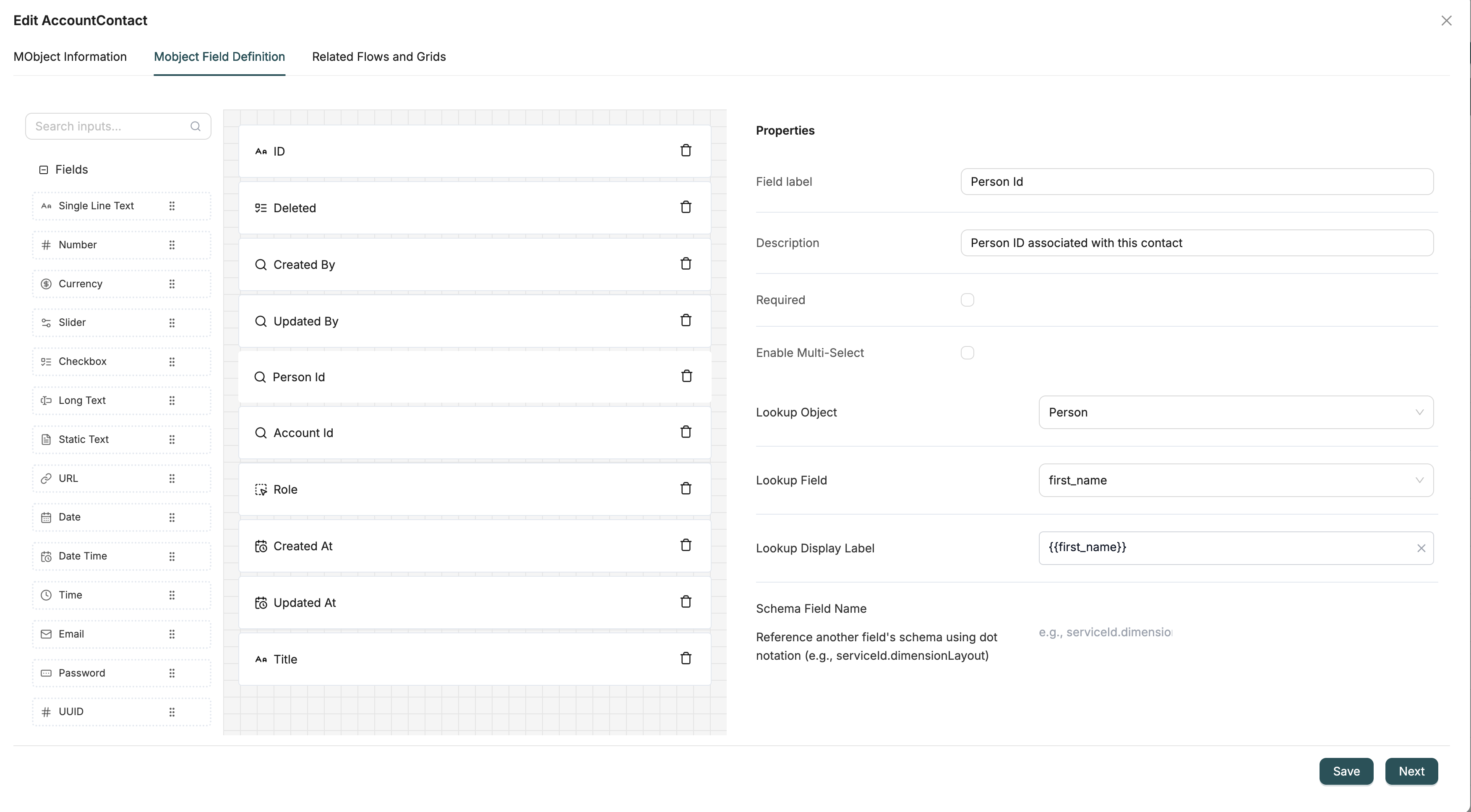
The Object Field Definition consists of:
-
Field Palette (Left Side): A tree of available field types you can drag and drop
- General Fields (Text, Number, Date, etc.)
- Special Fields (Attachment, File Array, Service Widget etc.)
- System Fields (automatically added)
-
Form Canvas (Center): Where you build your Object schema
- Drag fields from the palette
- Arrange and organize fields
- Configure field properties
-
Property Panel (Right Side): Configure selected field properties
- Field name and label
- Data type and format
- Validation rules
- UI options
- External data sources (for Lookup fields)
Field Definition Process
When defining Object fields using the Object Field Definition:
- Select Field Type: Choose from the field palette (e.g., Single Line Text, Number, Lookup)
- Drag to Canvas: Drop the field onto the form canvas
- Configure Properties: Set field name, label, validation rules, and UI options
- Set Relationships: Configure Lookup fields to reference other Objects
- Save Schema: The Object Field Definition converts your visual configuration into a JSON Schema
Field Properties
Each field in the Object Field Definition has configurable properties:
Common Properties
- Name: Technical field name (used in API and database)
- Label/Title: Display name shown in forms
- Description: Help text for users
- Required: Whether the field is mandatory
- Default Value: Initial value for new records
Type-Specific Properties
Different field types have additional properties:
- Text Fields: Min/max length, pattern validation
- Number Fields: Min/max values, decimal places
- Date Fields: Date format, date range constraints
- Lookup Fields: Target Object, display field
- Picklist Fields: Enum values, multi-select option
Best Practices
Field Naming
- Use clear, descriptive names:
customerNameinstead ofname1 - Follow consistent naming conventions (camelCase)
- Avoid reserved words and special characters
Field Organization
- Group related fields together
- Use logical ordering (e.g., personal info before contact info)
- Consider user workflow when arranging fields
Relationships
- Plan Lookup fields early in your design
- Choose meaningful display fields for Lookup fields
- Consider cascade behavior for related data
Example: Creating a Customer Object
- Start: Open Object creation dialog
- Basic Info: Enter name "Customer" and description
- Field Definition Tab: Use Object Field Definition to add fields:
- Drag "Single Line Text" → Name:
name, Label: "Customer Name" - Drag "Email" → Name:
email, Label: "Email Address" - Drag "Lookup" → Name:
accountManager, Label: "Account Manager", Target: "User" Object
- Drag "Single Line Text" → Name:
- Configure: Set validation rules (required fields, email format)
- Save: Object Field Defnition generates the JSON Schema and creates the Object
Related Introduction
- Field Types - Complete reference for all field types
- Creating Objects - Configure Object-level settings