
Configuring Grid Actions
The Grid Actions configuration dialog allows you to configure three main aspects of your datagrid: Actions, Drill-down, and General Settings. Each is organized in separate tabs for easy management.
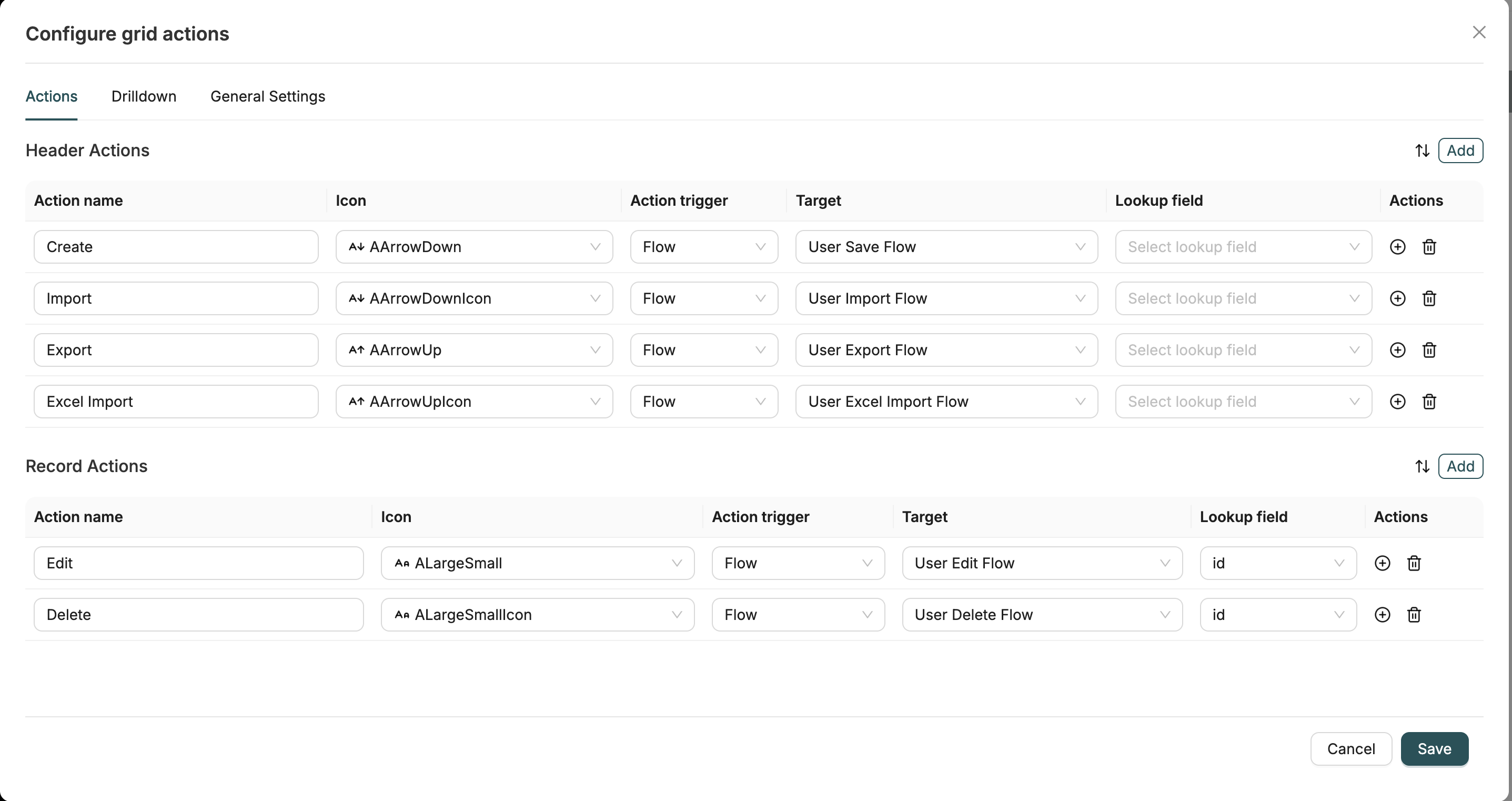
Configure actions that can be triggered from the datagrid. Actions are divided into two types:
Action Types
- Header Actions: Actions available at the grid level, displayed in the grid header
- Row Actions: Actions available for each individual record row
Action Configuration
For each action, configure the following:
Action Name
A descriptive name for the action that will be displayed to users.
Icon
Select an icon to represent the action visually. Icons help users quickly identify action types.
Action Trigger
Choose how the action is triggered:
- FORM: Open a form for creating or editing records
- FLOW: Trigger a workflow with the selected record
- FLOW_CHAIN: Execute a flow chain
- DOWNLOAD: Download data or files
Target
Select the specific target for the action:
- For FORM: Choose the Form to open
- For FLOW: Choose the workflow to execute
- For FLOW_CHAIN: Choose the flow chain to execute
- For DOWNLOAD: Configure download parameters
Lookup Field
Specify which field from the current record should be passed to the target. This is useful for:
- Passing record IDs to workflows
- Pre-filling forms with record data
- Filtering drill-down views based on selected records
Action Management
- Add Action: Click to add a new action (Header or Row type)
- Reorder Actions: Drag and drop actions to change their order
- Remove Action: Delete actions that are no longer needed
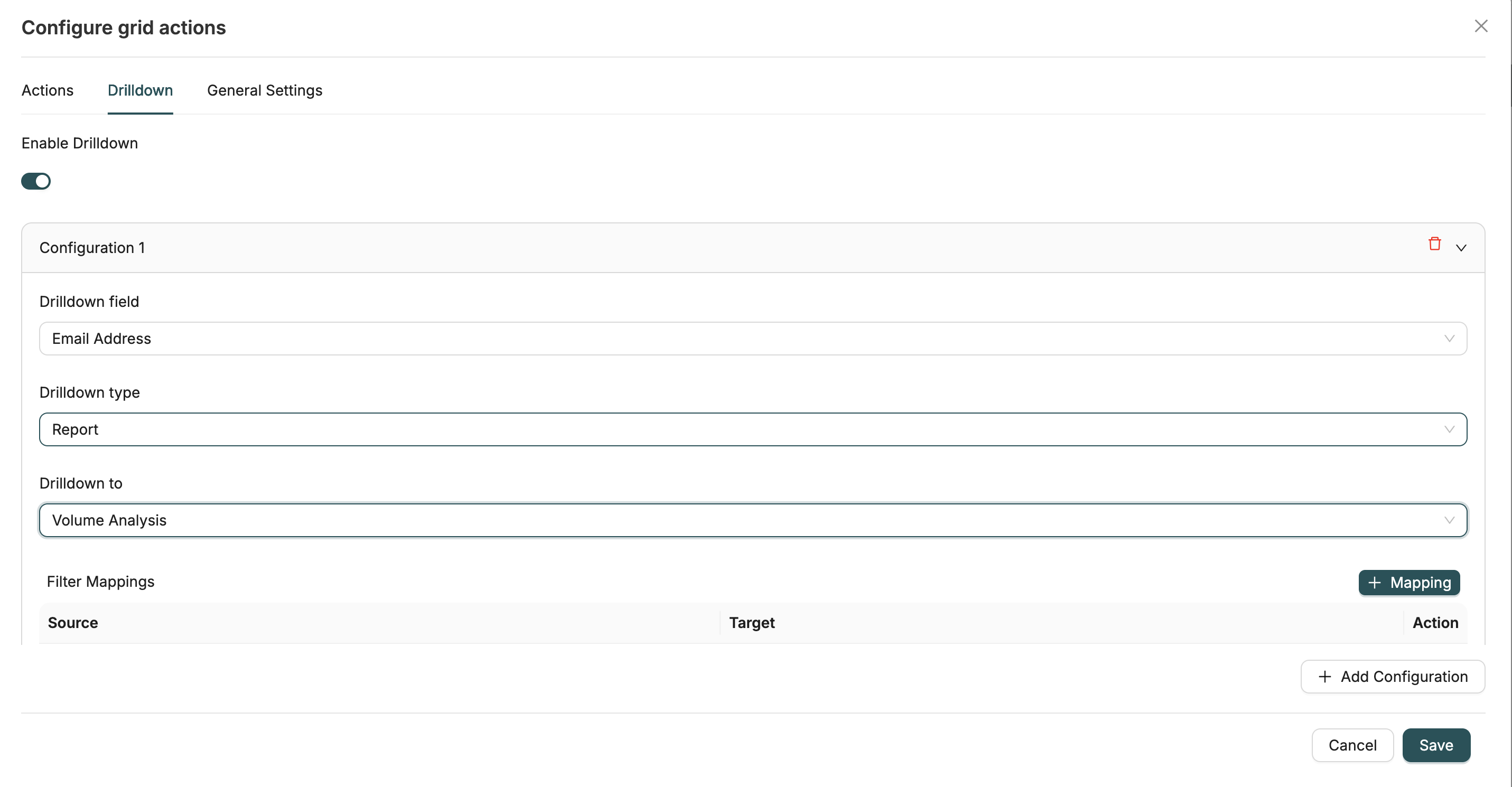
Configure drill-down links that allow users to navigate to related pages or detailed views when clicking on specific columns.
Enable Drill-Down
Toggle the switch to enable or disable drill-down functionality for the datagrid.
Drill-Down Types
Configure drill-down definitions with the following options:
- Report: Navigate to another report/datagrid
- Layout360: Navigate to a Layout360 view
- Mixed Layout: Navigate to a mixed layout
- Dashboard: Navigate to a dashboard page
- Work Flow: Navigate to a workflow
- My Tasks: Navigate to user tasks
Drill-Down Configuration
For each drill-down definition:
- Select Field: Choose the column field that will trigger the drill-down
- Select Type: Choose the drill-down target type (Report, Layout360, etc.)
- Select Target: Choose the specific target asset (report, layout, workflow, etc.)
- Configure Filter Mapping: Map fields from the current grid to filter the drill-down target
Multiple Drill-Down Definitions
You can configure multiple drill-down definitions for different fields, allowing different columns to navigate to different targets.
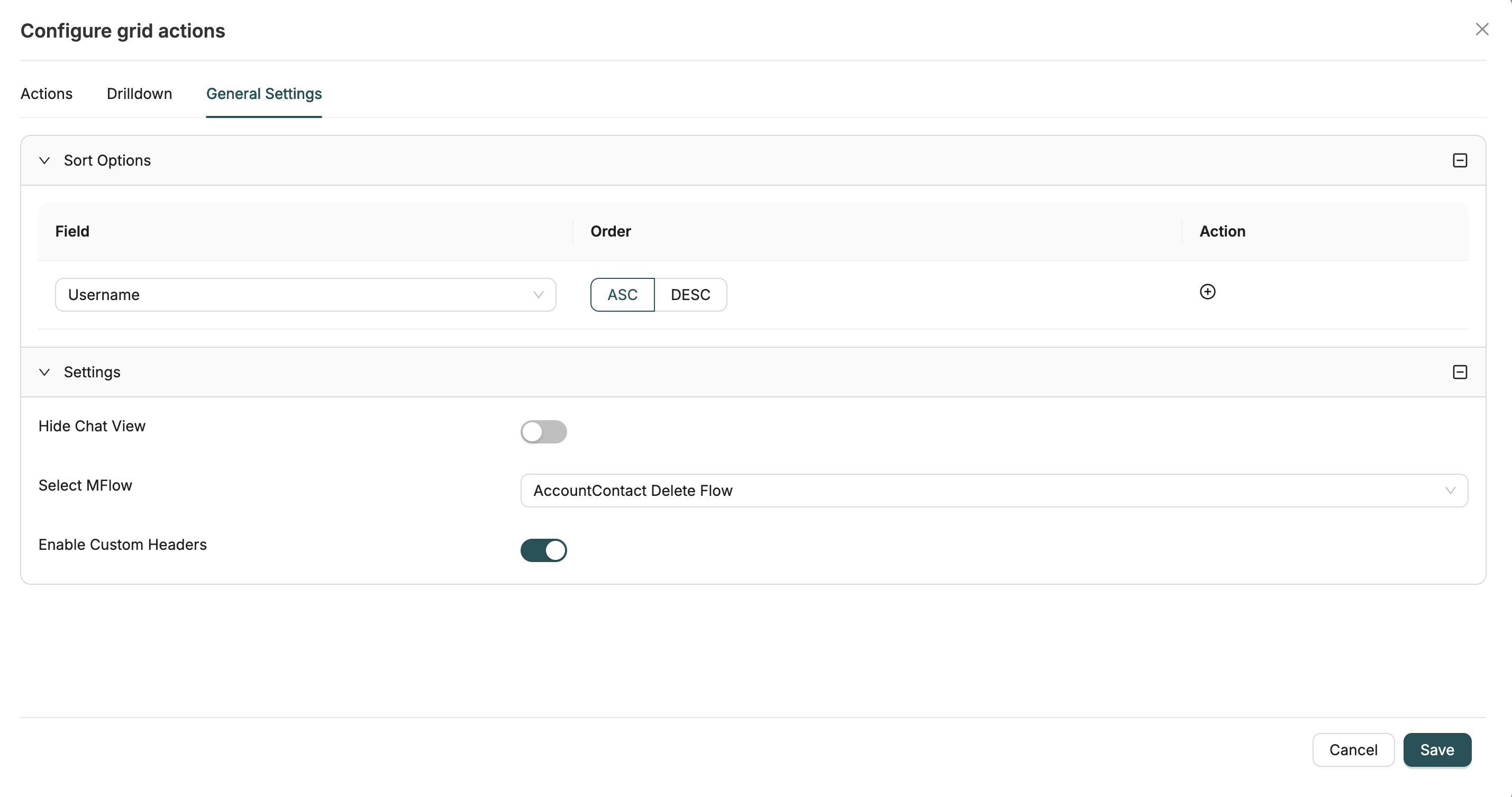
Configure additional settings that affect the overall behavior of the datagrid.
Sort Options
Define the default sort order for the grid:
- Add Sort Fields: Add one or more fields to sort by
- Select Field: Choose the field to sort by
- Select Order: Choose ascending (ASC) or descending (DESC) order
- Multiple Sorts: Add multiple sort fields for complex sorting (sorts are applied in order)
Settings
Configure additional grid settings:
Hide Chat View
Toggle to hide or show the chat view in the datagrid interface.
Select Flow
Associate a workflow with the datagrid. This workflow can be triggered from various grid interactions.
Enable Custom Headers
Toggle to enable custom column headers. When enabled, you can customize header text and formatting.
Best Practices
Actions
- Limit Actions: Keep the number of actions manageable to avoid cluttering the interface
- Clear Names: Use descriptive action names that clearly indicate what the action does
- Logical Ordering: Order actions by frequency of use or logical grouping
- Appropriate Icons: Choose icons that match the action's purpose
Drill-Down
- Relevant Fields: Configure drill-down only on fields that logically lead to related data
- Filter Mapping: Properly map fields to ensure drill-down views show relevant filtered data
- User Expectations: Ensure drill-down targets match user expectations for navigation
General Settings
- Default Sort: Set a default sort that makes the most common use case efficient
- Flow Association: Associate workflows that enhance the datagrid's functionality
- Custom Headers: Use custom headers to improve readability for business users
Related Introduction
- Creating Datagrids - Learn how to create datagrids
- Datagrids Introduction - Overview of datagrids
- Workflows Introduction - Learn about workflows used in actions
- Objects Introduction - Understand Objects displayed in datagrids