
Creating Form Chains
Form chains are created using the Form Chaining interface. Each form chain consists of multiple steps that execute in sequence, with the ability to pass data between steps.
Required Information
- Name: Unique identifier for the form chain (required)
- Description: Optional description explaining the form chain's purpose
- Steps: At least one step must be configured (required)
Configuration Steps
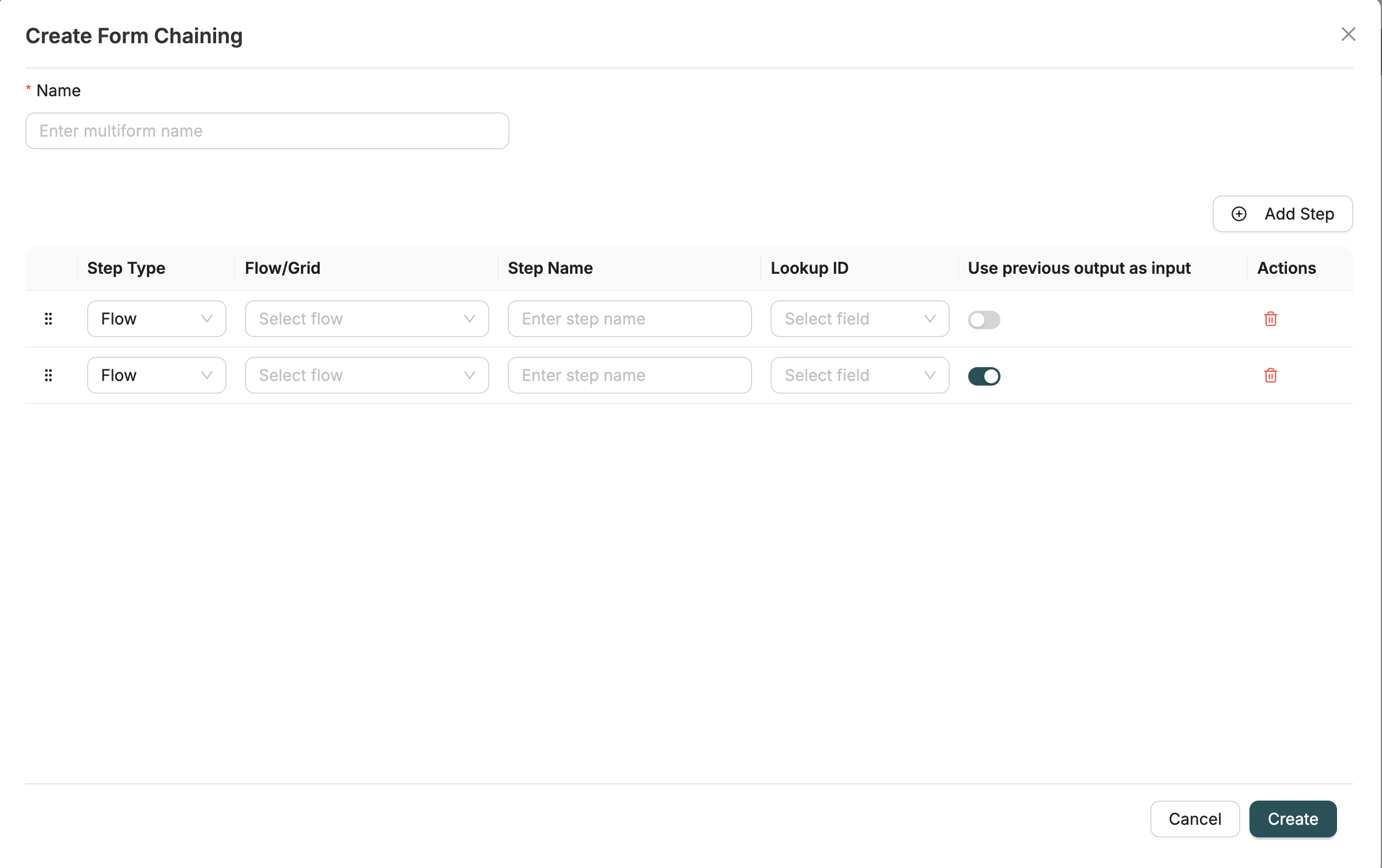
1. Open Form Chain Creation Dialog
Navigate to the Form Chaining page and click the "Form Chaining" button (with plus icon) to open the creation dialog.
2. Enter Form Chain Name
Provide a unique name for the form chain. This name will be used to identify the form chain throughout the system.
3. Add Steps
Click the "Add Step" button to add steps to your form chain. Each step represents one form or datagrid in the sequence.
4. Configure Each Step
For each step, configure the following:
Select Step Type
Choose the type of step:
- FLOW: A workflow (MFlow) that displays a form
- GRID: A datagrid (MDataGrid) that displays records
Select Flow or Grid
Based on the selected step type, choose the specific item:
- For FLOW steps: Select a workflow (MFlow) from the dropdown
- For GRID steps: Select a datagrid (MDataGrid) from the dropdown
Note: When you change the step type, the selected flow/grid is cleared and must be reselected.
Enter Step Name
Provide a descriptive name for the step. This name will be displayed to users when executing the form chain.
Auto-generation: If you don't enter a step name, it will be auto-generated from the selected flow or grid name. You can override this with a custom name.
Configure Lookup ID (Optional)
For both FLOW and GRID steps, you can optionally configure a lookup field ID. This is used to filter data based on previous step output.
How it works:
- For GRID steps: The lookup field filters the datagrid to show only records matching the previous step's output
- For FLOW steps: The lookup field can be used to pass specific fields from previous output
After selecting a flow or grid, available fields will appear in the Lookup ID dropdown. Select the field you want to use for filtering.
Note: Lookup fields are automatically fetched when you select a flow or grid.
Configure Use Previous Output
Toggle whether this step should use the previous step's output as input.
How it works:
- When enabled: The output from the previous step is passed as input to this step
- When disabled: The step uses its own configured input or no input
Note: The first step cannot use previous output (toggle is disabled).
5. Reorder Steps
Steps are executed in the order they appear in the table. You can reorder steps using drag and drop:
- Click and hold the drag handle (grip icon) on the left side of a step row
- Drag the step to the desired position
- Release to drop the step in the new position
How it works: The display order is automatically updated when you reorder steps. Steps execute sequentially from top to bottom.
6. Remove Steps
To remove a step from the form chain:
- Click the delete icon (trash icon) in the "Actions" column
- The step is immediately removed from the table
Note: After removing a step, the display order of remaining steps is automatically recalculated.
7. Save Form Chain
Click the "Create" button to save the form chain. The system will validate:
- Name is provided
- At least one step exists
- All steps have a flow or grid selected (based on step type)
- All steps have a step name
After saving:
- The form chain is created and appears in the Form Chaining list
- The form chain can be edited, executed, or deleted as needed
- The form chain can be used in Builder pages as a widget
Editing Existing Form Chains
To edit an existing form chain:
- Navigate to the Form Chaining page
- Find the form chain in the list
- Click the "Edit" icon (or click on the form chain name) in the actions dropdown
- The form chain creation dialog will open with existing configuration
- Make your desired changes to steps, step order, or configuration
- Click "Save" to apply updates
Note: When editing, all existing steps are loaded with their current configuration. You can add, remove, or reorder steps as needed.
Step Configuration Details
FLOW Steps
FLOW steps execute workflows (MFlows) that display forms:
- Purpose: Collect data from users through forms
- Input: Can receive input from previous step output (if enabled)
- Output: Produces output data that can be passed to the next step
- Lookup ID: Optional field to filter or map specific fields from previous output
GRID Steps
GRID steps display datagrids (MDataGrids) showing records:
- Purpose: Display and review data in a table format
- Input: Can receive input from previous step output (if enabled)
- Lookup ID: Used to filter the datagrid based on previous step output
- Use Case: Review records related to data created in previous steps
Data Flow Between Steps
When "Use previous output as input" is enabled:
- Step 1 executes and produces output (e.g.,
{ orderId: "123", customerId: "456" }) - Step 2 receives this output as input
- If Step 2 has a Lookup ID configured (e.g.,
orderId), it uses that field to filter or map data - Step 2 processes the input and produces its own output
- Step 3 receives Step 2's output, and so on
This enables complex workflows where each step builds upon the previous step's results.
Best Practices
Naming Conventions
- Use descriptive names that clearly indicate the form chain's purpose
- Include context in the name (e.g., "Order Processing Chain" instead of "Chain 1")
- Use consistent naming patterns across related form chains
Step Names
- Use clear, user-friendly step names that indicate what users will do
- Avoid technical jargon in step names
- Keep step names concise but descriptive
Step Ordering
- Order steps logically based on the workflow process
- Place data collection steps before review/verification steps
- Consider user experience when ordering steps
Data Flow
- Enable "Use previous output as input" for steps that need data from previous steps
- Configure Lookup ID fields for GRID steps to filter related records
- Test data flow between steps to ensure proper data passing
Step Types
- Use FLOW steps for data entry and user interactions
- Use GRID steps for data review and verification
- Mix FLOW and GRID steps to create comprehensive workflows
Validation
- Ensure all steps have valid flows or grids selected
- Verify that lookup fields exist in the target flow/grid
- Test form chains before deploying to production
Related Introduction
- Form Chaining Introduction - Overview of form chaining
- Workflows Introduction - Learn about workflows used as form chain steps
- Datagrids Introduction - Understand datagrids used as form chain steps
- Builder Introduction - Learn how to use form chains in Builder pages