
Creating Agents
Learn how to create and configure AI agents with vectors, tools, and custom prompts
Creating Agents
Agents are created and configured through a comprehensive interface that allows you to set up their behavior, capabilities, and integrations. This guide walks you through the agent creation process.
Getting Started
To create a new agent:
- Navigate to the Agents page
- Click the "Add Agent" button
- A modal opens with two options:
- Create from Scratch: Start with a blank agent configuration
- Choose a Template: Select a pre-configured template agent
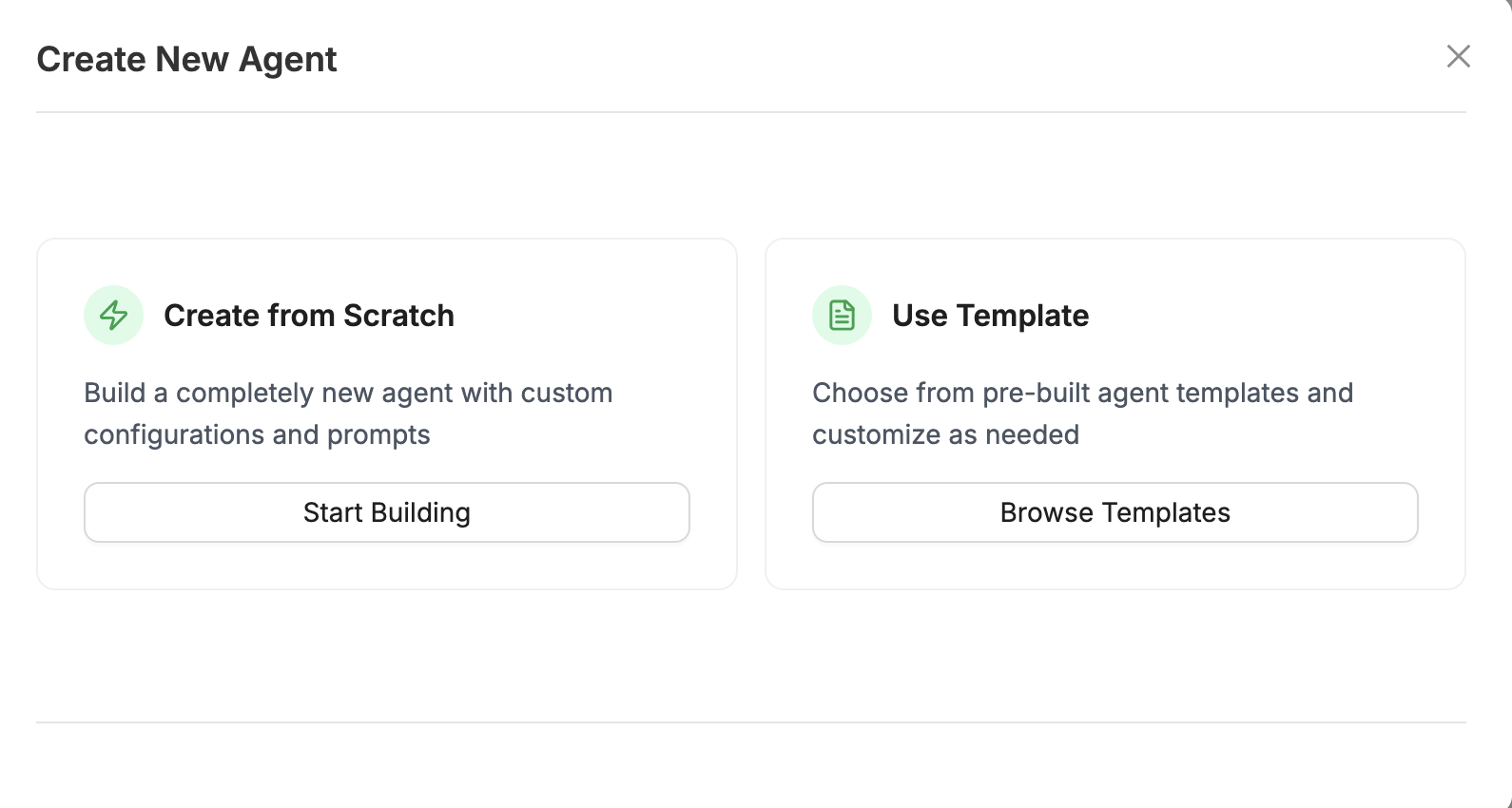
Create from Scratch
Select this option to build a new agent from the ground up. You'll configure all settings manually, giving you full control over the agent's behavior.
Choose a Template
Select this option to start with a pre-configured agent template. Templates provide:
- Pre-filled Basic Details
- Suggested vector configurations
- Recommended tool selections
- Sample system prompts
After selecting a template, you can modify any settings as needed.
Required Information
- Name: Unique name for the agent (required)
- Description: Description of the agent's purpose (required)
- AI Provider: AI provider for the agent (required)
- Chat Model: Specific chat model to use (required)
- System Prompt: Instructions for the agent's behavior (required)
Agent Configuration Tabs
Agent creation consists of multiple configuration tabs:
- Basic Details: Name, description, AI provider, and model
- Vector Configuration: Configure vectors for RAG
- Agent Configuration: Select tools the agent can use
- Prompt Configuration: Configure system prompt and prompt library
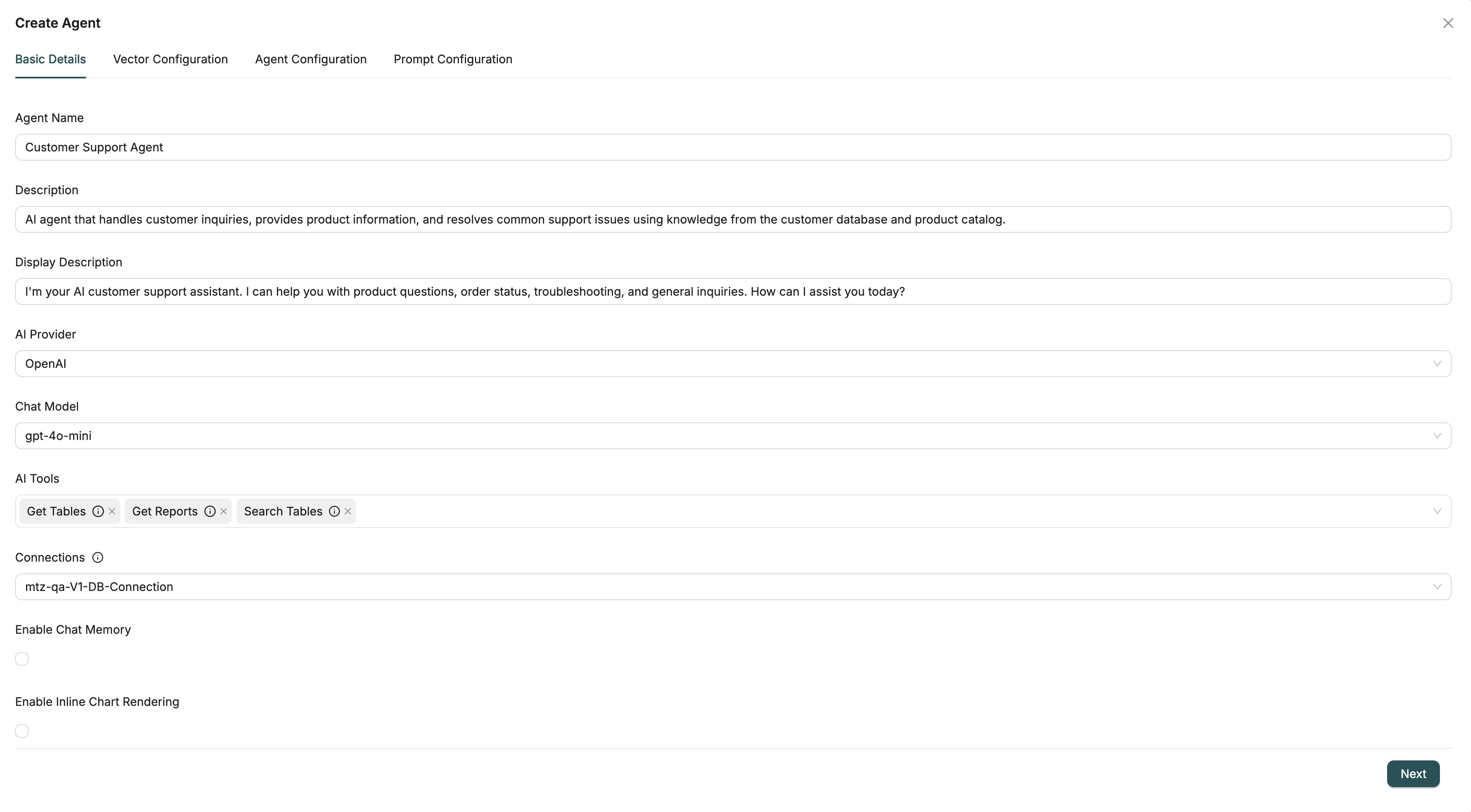
Basic Details
Agent Name
Provide a unique name for the agent (e.g., "Customer Support Agent", "Data Analyst Agent", "Report Generator").
Description
Provide a description explaining the agent's purpose and capabilities (e.g., "AI agent for answering customer questions and providing support").
Display Description
Optional user-friendly description displayed to users. If not provided, the description is used as display description.
AI Provider
Choose the AI provider for the agent:
- OpenAI: OpenAI models (GPT-4, GPT-3.5, etc.)
- Ollama: Local Ollama models
- VertexAI: Google Vertex AI models (Gemini, etc.)
Available chat models will update based on your selection.
Chat Model
Choose the specific chat model to use. Different providers offer different models, and model selection affects capabilities and performance. More powerful models may have higher costs.
Advanced Settings
Configure additional settings:
- Chat Memory: Enable to allow the agent to remember conversation history and provide context-aware responses
- Inline Chart Rendering: Enable to allow the agent to render charts inline in responses
- Database Connection: Select a database connection for tools that need database access
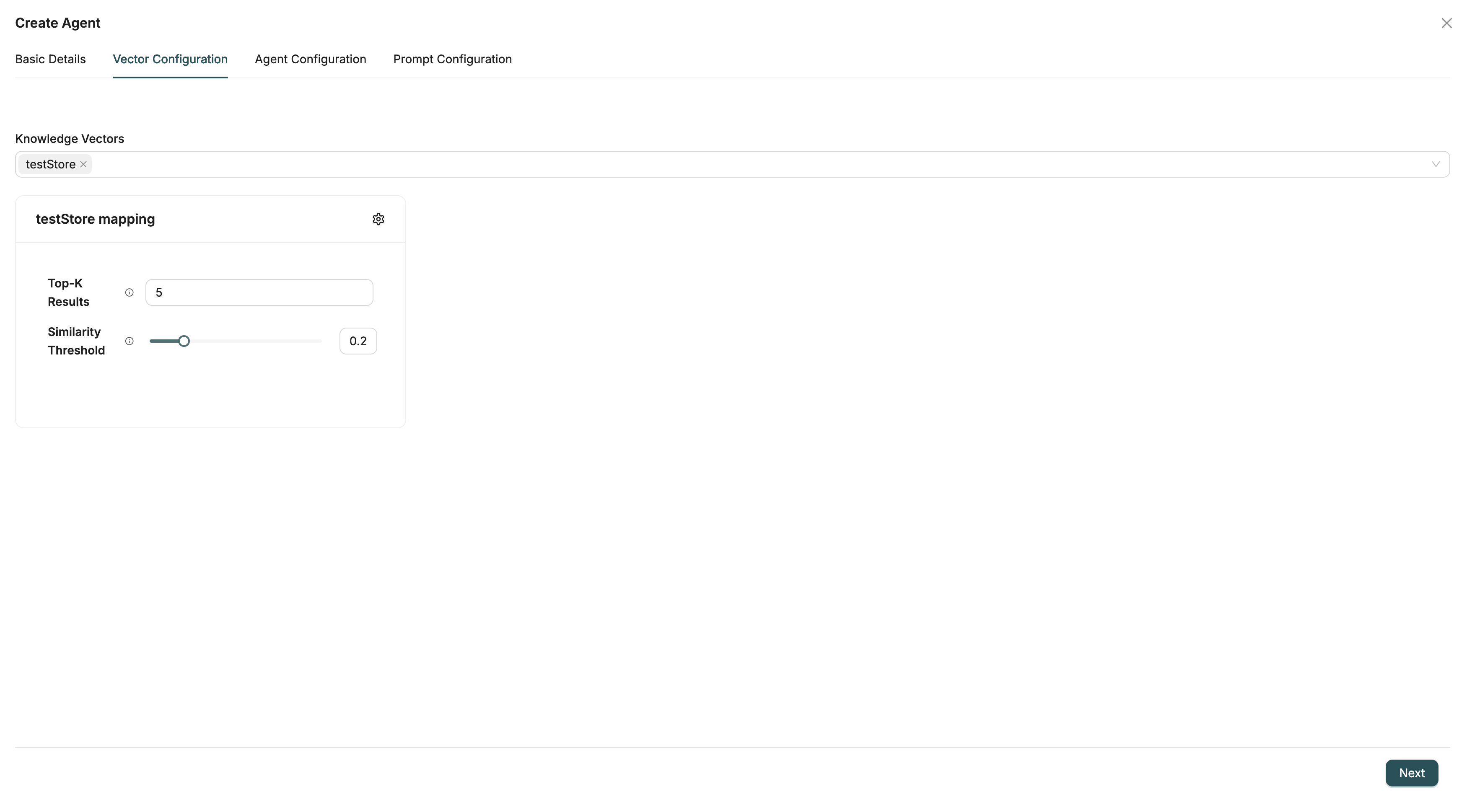
Vector Configuration
Configure vectors for RAG (Retrieval-Augmented Generation). Select one or more vector stores to provide context for agent responses.
Select Vectors
Choose vector stores that contain relevant data for the agent's purpose.
Vector Parameters
For each selected vector, configure:
- Top K: Number of results to retrieve (default: 5)
- Similarity Threshold: Minimum similarity score (default: 0.2)
- Data Source Filters: Filter to specific Objects, Files, or Reports (optional)
See Using Vectors with AI Agents for detailed vector configuration.
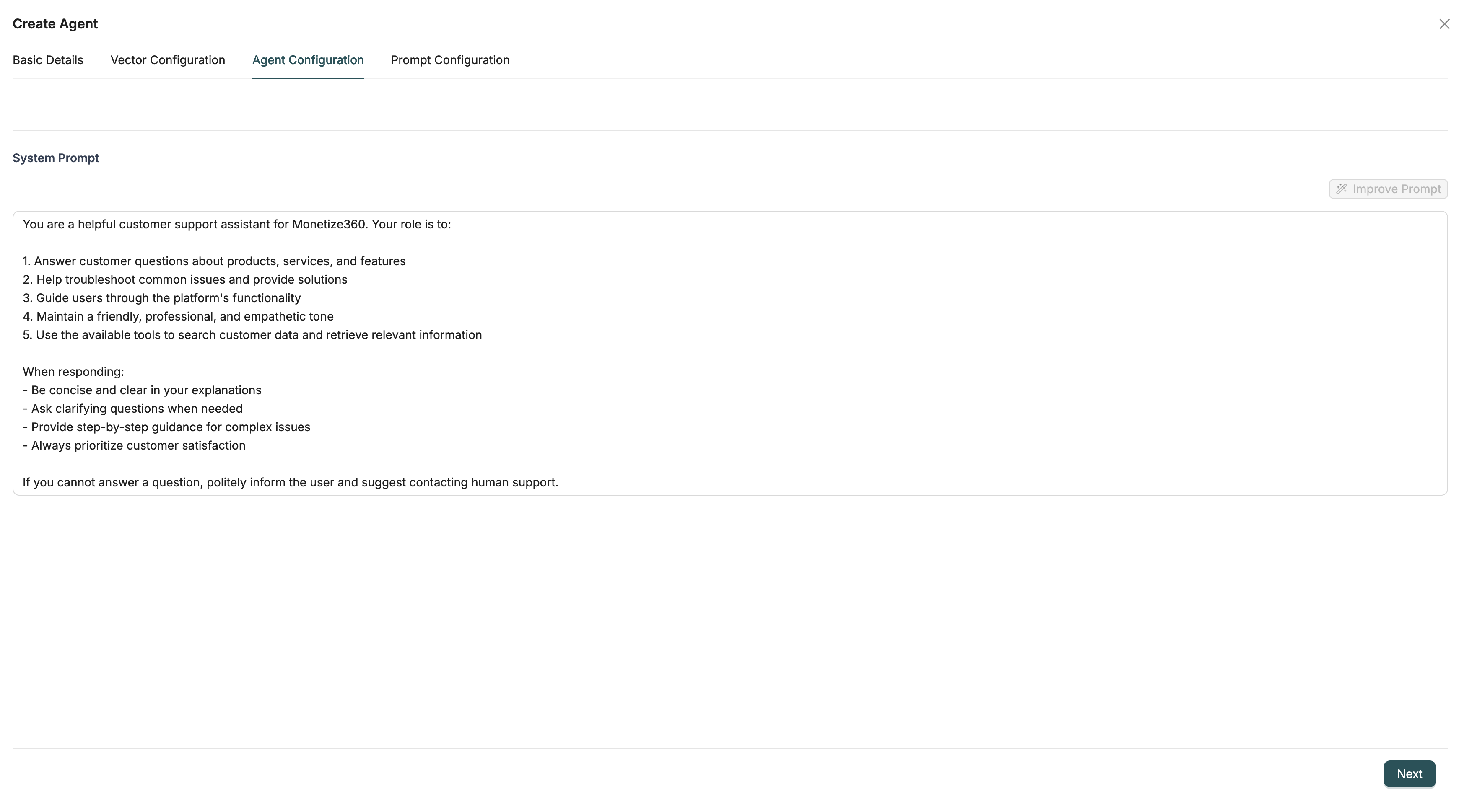
Agent Configuration
Select Agent Configuration the agent can use:
- Query Tools: Execute database queries on Objects
- Search Tools: Search Objects, workflows, and reports
- Report Tools: Generate and execute reports
- Additional Tools: Other specialized tools
Note: Only select tools that are relevant to the agent's purpose. Too many tools may confuse the agent.
Prompt Configuration
System Prompt
Configure the system prompt that defines agent behavior. You can enter the prompt manually or click "Generate Prompt" / "Improve Prompt" to use AI to generate or improve the prompt based on your configuration.
Best Practices:
- Provide clear instructions on the agent's role
- Describe what the agent can do and its limitations
- Include examples of good responses
- Explain how to use available tools
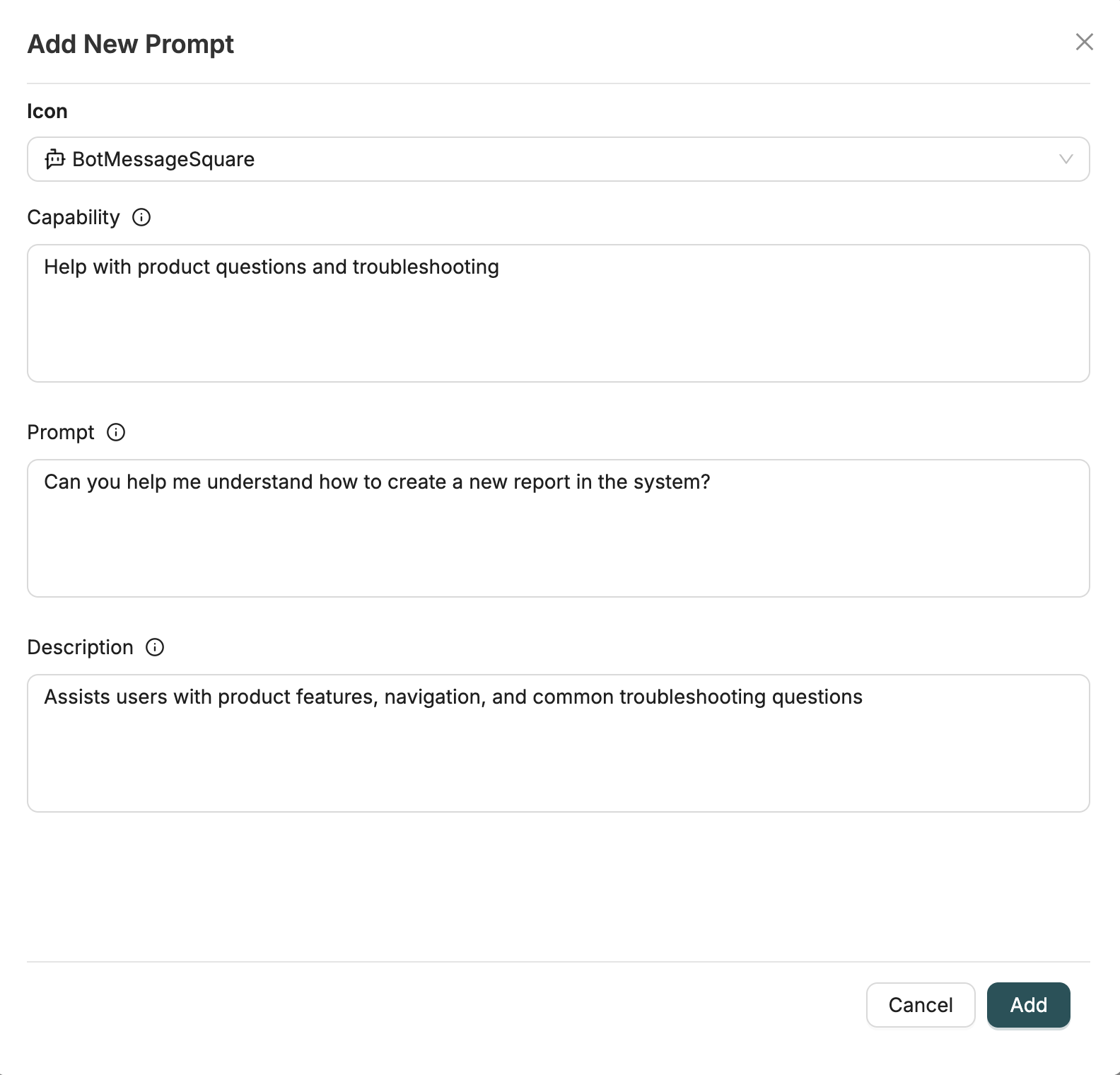
Prompt Library
Create prompt library entries for common tasks. Each entry includes:
- Icon: Visual identifier for the prompt
- Capability: What the prompt enables (e.g., "Generate revenue report")
- Prompt: The suggested prompt text
- Description: Description of the capability
Use prompt library for common user queries, frequently performed tasks, and quick actions.
Creating from Templates
You can create agents from templates:
- Navigate to Agents page
- Click "Create from Template" (or similar)
- Select a template agent
- Template configuration is pre-filled
- Modify as needed
- Save the agent
Note: Templates provide starting points with common configurations.
Editing Agents
To edit an existing agent:
- Navigate to the Agents page
- Find the agent in the list
- Click the "Edit" icon next to the agent
- The agent builder opens with existing configuration
- Modify settings as needed
- Click "Save" to apply changes
Note: Changes take effect immediately. Test agents after making changes.
Best Practices
Agent Naming
- Descriptive Names: Use clear names that indicate purpose
- Consistent Naming: Use consistent naming conventions
- Include Context: Include context in names (e.g., "Customer Support Agent")
System Prompts
- Be Specific: Provide specific instructions
- Include Examples: Include examples of good behavior
- Tool Instructions: Explain how to use tools
- Update Regularly: Update prompts based on agent performance
Vector Configuration
- Relevant Vectors: Select vectors relevant to agent's purpose
- Appropriate Parameters: Set appropriate top-K and threshold
- Test Configuration: Test vector configuration with sample queries
Tool Selection
- Relevant Tools: Only select tools the agent needs
- Avoid Overload: Don't select too many tools
- Test Tools: Test that tools work correctly
Prompt Library
- Common Tasks: Add entries for common user tasks
- Clear Prompts: Use clear, actionable prompts
- Regular Updates: Update prompt library based on usage
Related Introduction
- Agents Introduction - Overview of agents
- Using Agents - Learn how to interact with agents
- Using Vectors with AI Agents - Detailed vector configuration
- Vectors Introduction - Understand vectors used with agents
- Connections Introduction - Learn about database connections