
Configuring Huddle Agents
Learn how to configure and use HuddleMaster agents to orchestrate multiple agents in collaborative conversations
Configuring Huddle Agents
HuddleMaster Agent
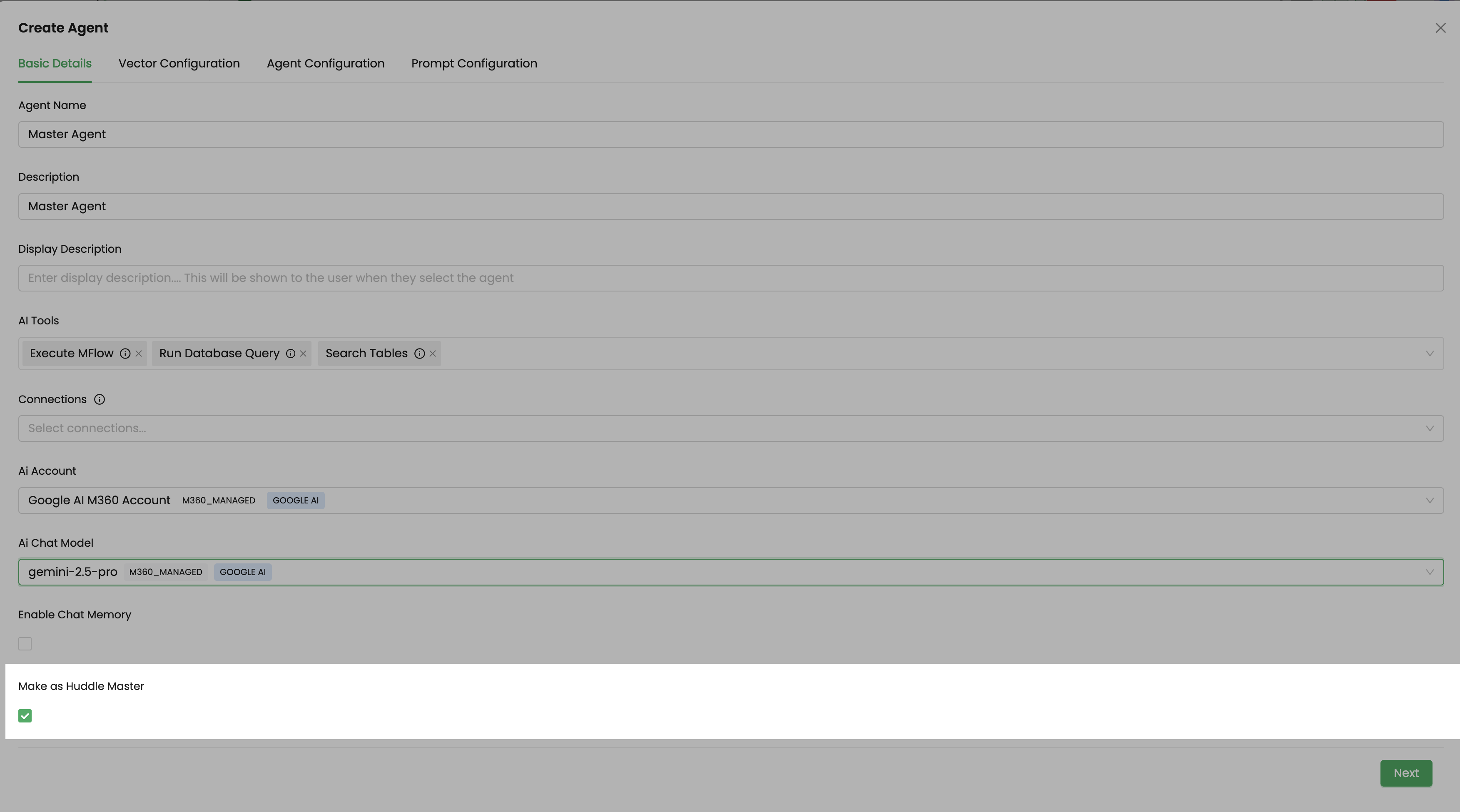
You can build any agent and make it as huddleMaster (enable checkbox).
HuddleMaster agent has capability (internally powered) to be able to invoke other agents involved in the huddle and collect responses from them if needed.
It understands the user question, and determines which agent/agents in the huddle is/are suitable for this query, and fires sub-questions to them. Each sub agent executes to answer the query, and responds with answer.
If the collected responses from subagents are satisfying, huddlemaster responds back with overall summary, if not, it goes into another loop, to clarify few more questions with the agents available, till its satisfied.
Once satisfied, huddleMaster collates all information and responds back.
In next huddle follow up question, you can dynamically keep on adding few more agents to the chat or remove existing agents from huddle, as required at runtime.
Ideally the agent thats assigned role of huddleMaster - should be avoided with access of other tools and knowledgeVectors, since it can itself try to come up with answers by leveraging tools, instead of orchestrating with expert agents.
Basic prompting is done internally for huddleMaster to instruct it to choose the right agent based on the information available. (It relies on sub-agents NAME, and DESCRIPTION). Hence its very important to have meaningful name and description configured for all agents, planned to be in the huddle. Therefore if you have any specific usecase or criteria to choose sub-agents based on something, that you should instruct correctly to huddleMaster agent in the system prompt.
If the huddle master doesn't find any suitable subagents then it responds on its own. For ex: If query is "Hello Good morning", this query doesnt require subAgent invocation. HuddleMaster itself will respond saying "gm, how can I help you?".
So how you want HuddleMaster to orchestrate the huddle, you can fine tune based on your needs, by tuning the system prompt of huddleMaster and giving it specific instructions on how to operate.
At a given point of time, there can be only 1 huddleMaster among all agents configured. Its auto picked up during all huddles.
Configuring HuddleMaster
Enabling HuddleMaster
To create a HuddleMaster agent:
- Navigate to the Agents page
- Click "Add Agent" or edit an existing agent
- Configure the agent as usual
- Enable the "HuddleMaster" checkbox
- Save the agent configuration
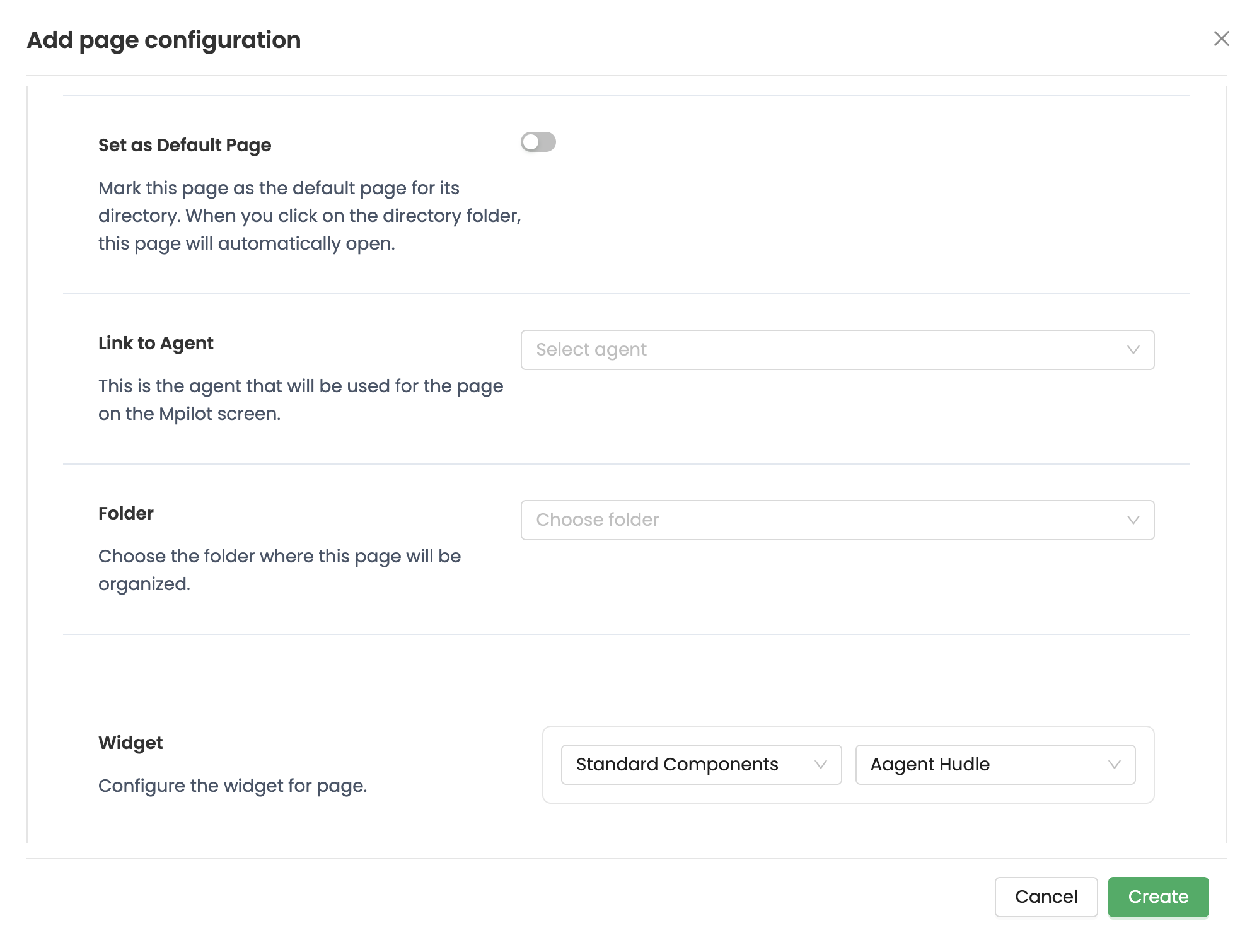
Adding Agent Huddle Page
To add a page with the Agent Huddle component:
- Navigate to the Builder section
- Click "Add Page" or create a new page
- Select "Standard Component" from the component options
- Choose "Agent Huddle" as the component type
- Configure the page and save