
Creating Templates
Templates are created using the Template Designer interface. Each template requires a name, type, and content with variable placeholders.
Template Details
Required Fields
- Template Name: Unique identifier for the template
- Template Type: Choose from:
EMAIL- For email notificationsPDF- For PDF document generationDOCUMENT- For document templates
- Content: HTML template content with Pebble syntax variables
Optional Fields
- Email Subject: Required for EMAIL templates, supports variable substitution (e.g.,
Order {{orderNumber}} Confirmation) - Folder: Organize templates into directories for better management
Template Content
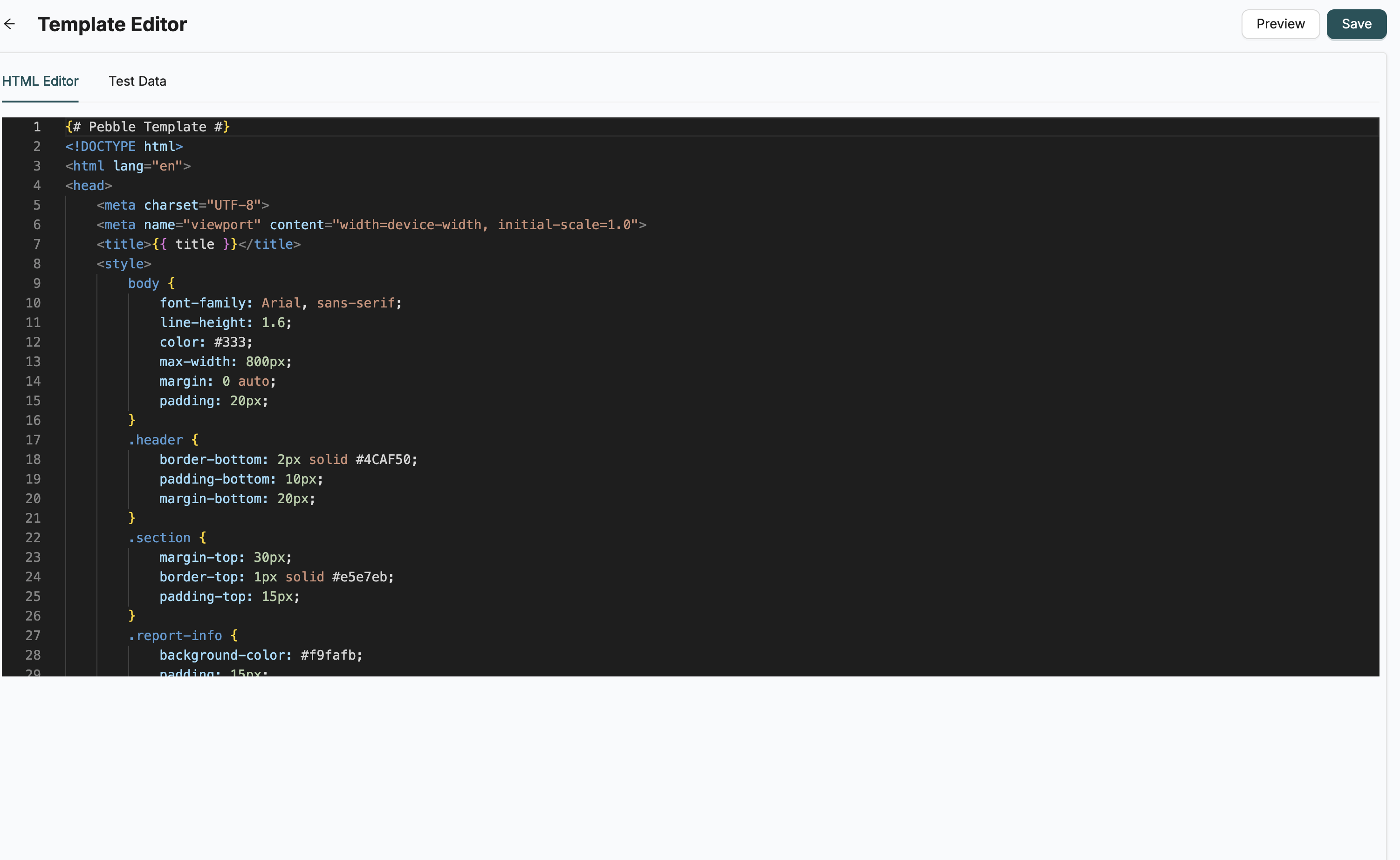
Templates use Pebble Template Engine syntax for dynamic content:
Variables
<p>Dear {{customerName}},</p>
<p>Your order {{orderNumber}} has been confirmed.</p>
Conditionals
{% if orderStatus == "shipped" %}
  <p>Your order has been shipped!</p>
{% endif %}
Loops
<ul>
{% for item in orderItems %}
  <li>{{item.name}} - {{item.price}}</li>
{% endfor %}
</ul>
Creating a Template
- Navigate to Template Designer
- Click "Create Template"
- Enter template name and select type
- For EMAIL templates, enter email subject
- Write template content with variables
- Optionally select a folder for organization
- Save the template
Template Structure
Templates should include:
- HTML structure (for PDF/EMAIL)
- Variable placeholders using
{{variableName}} - Conditional logic and loops as needed
- Proper formatting and styling
Related Introduction
- Template Preview - Test your templates before use
- EmailNotification - Use templates in email workflows
- HTMLToPDF - Generate PDFs from templates